How to Convert JPG to WebP Online (Step-by-Step)
Convert JPG to WebP or WebP to JPG on Chrome, Safari, Edge, Firefox, iPhone, Android, Mac, and PC.
Select Conversion Mode
Choose JPG to WebP or WebP to JPG from the dropdown menu at the top.
Upload Images
Tap or drag & drop your .jpg, .jpeg, or .webp files into the converter.
Pick Quality Preset
Select Google PageSpeed (80%) or adjust the quality slider to your desired compression.
Download WebP / JPG
Click Convert All and download files individually or as a single compressed ZIP archive.
How to Convert WebP to JPG Online in the USA (Complete Guide)
Millions of users across the United States frequently ask how to convert webp to jpg or how to convert a webp to jpg after saving images from Google Chrome, Microsoft Edge, or Apple Safari. Because .webp files use Google's advanced compression format, legacy desktop software like Adobe Photoshop CS6, Microsoft Word, or older photo viewing apps on Windows and macOS cannot open them directly.
If you are asking can you convert webp to jpg or how do i convert a webp file to jpg: 1. Open Toolzeniq. 2. Select 'WebP to JPG' mode from the dropdown. 3. Drop your .webp image into the upload box and click Convert All. Your image instantly transforms into a standard .jpg photo ready for download.
Whether you are searching for how convert webp to jpg, how to convert .webp to jpg, or how to convert webp file to jpg, Toolzeniq processes your photos locally inside browser memory with 100% data privacy, fast execution, and zero file quality loss.
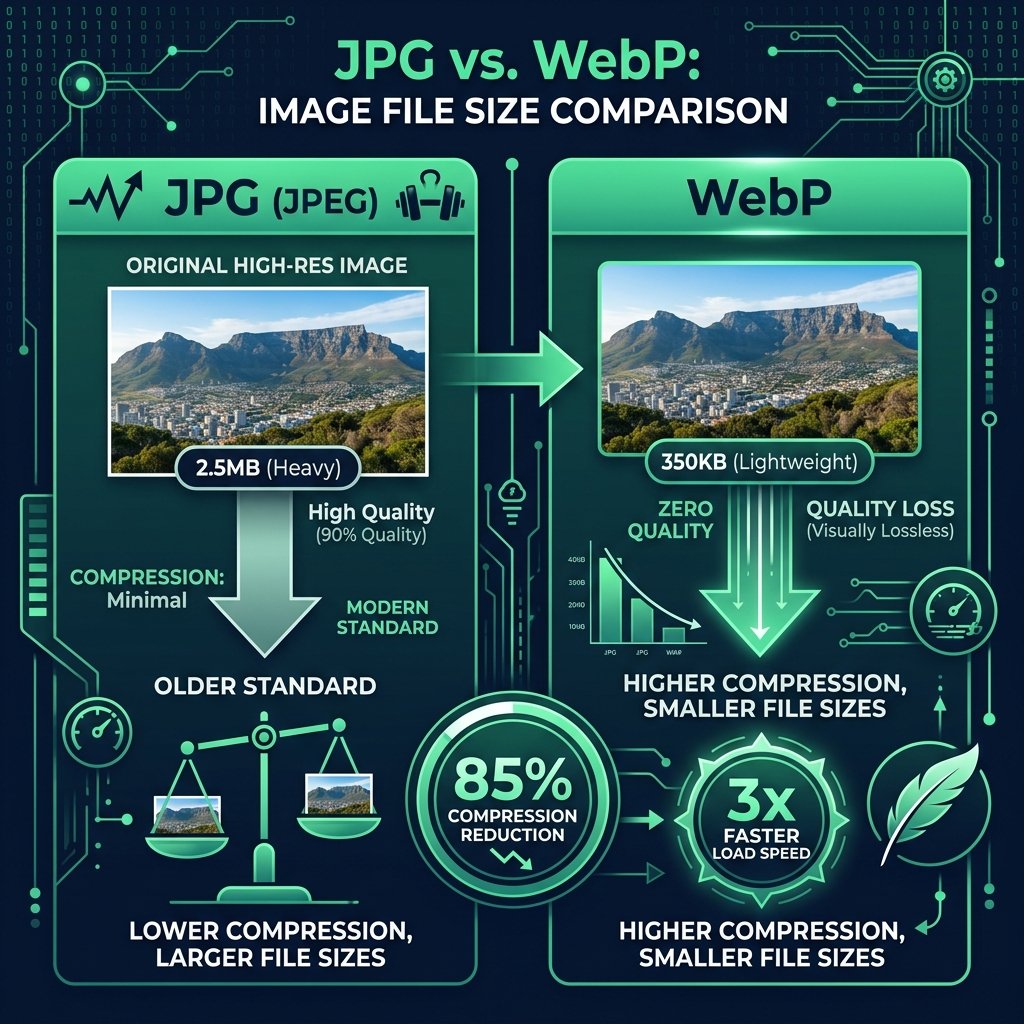
Why US E-Commerce Stores (Shopify, WooCommerce, Amazon) Need WebP Images
For web developers, digital agencies, e-commerce store owners, and content publishers in the United States, learning how to convert jpg to webp is an essential Core Web Vitals requirement. Search engines like Google US, Bing US, and Yahoo penalize slow-loading sites with poor Largest Contentful Paint (LCP) metrics caused by heavy uncompressed JPG files.
WebP images are up to 80% smaller than standard JPGs while preserving crisp visual detail. Converting product photos, blog thumbnails, and marketing banners to WebP elevates your Google PageSpeed Insights score to 95+ across desktop and mobile devices.
| Format | Avg File Size | Compression Type | Transparency Support | US Browser Compatibility |
|---|---|---|---|---|
| JPG / JPEG | 2.5 MB (Heavy) | Lossy Compression | No (Opaque) | 100% Universal |
| WebP (Google Next-Gen) | 350 KB (80% Smaller) | Lossy & Lossless | Yes (Alpha Channel) | 99.2% (Chrome, Safari, Edge) |
| PNG | 3.8 MB (Very Heavy) | Lossless Compression | Yes (Alpha Channel) | 100% Universal |
How to Convert JPG to WebP Under 100KB Without Losing Quality
Searching for convert jpg to webp 100kb or convert jpg to webp without losing quality? Toolzeniq features smart preset algorithms tailored for specific file target limits:
Google PageSpeed Preset (80%)
Delivers optimum compression for web publishing, cutting file sizes by 80% with invisible quality difference.
Mobile App Preset (65%)
Targeted for mobile developers seeking files under 100KB for ultra-fast iOS and Android app rendering.
Shopify E-Commerce (90%)
Preserves ultra-sharp HD product details for zoomable e-commerce store listings while saving bandwidth.
Cross-Browser Compatibility (Google Chrome, Apple Safari, Microsoft Edge, Firefox)
Google Chrome (Windows & Mac)
Converts JPG to WebP at maximum WebAssembly speed. Drag & drop files directly from your desktop or downloads folder.
Apple Safari (iOS & macOS)
Fully supported on iOS 14+ and macOS. Upload photos directly from your iPhone Photos App or iCloud Drive.
Microsoft Edge & Bing US
Engineered for Bing search rankings and Windows 10/11 users. Supports fast bulk batch conversion and ZIP downloads.